Introduction
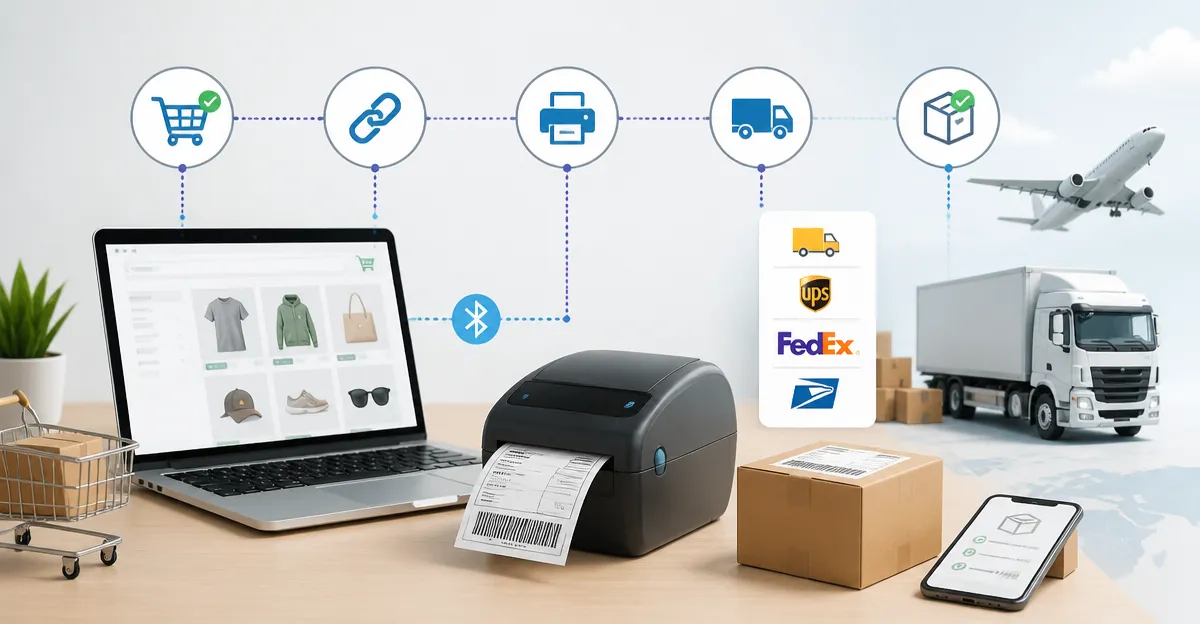
In today’s competitive ecommerce landscape, speed and accuracy in order fulfillment can determine whether a business thrives or merely survives. This guide will teach readers how to integrate an online store with major shipping carriers, automate label creation, and select reliable label printers that reduce manual effort. By following each step, merchants will achieve a seamless workflow that minimizes errors and improves customer satisfaction. The information is valuable for small‑business owners, hobby sellers, and anyone seeking a professional fulfillment process.
What You'll Need
- KNAON Bluetooth Shipping Label Printer – $49.99, 4.4/5 rating, portable thermal printer.
- NULLTONEX Bluetooth Shipping Label Printer – $56.60, 4.4/5 rating, high‑speed thermal printer.
- JADENS Bluetooth Shipping Label Printer – $69.99, 4.4/5 rating, Japanese thermal head.
- Nelko Bluetooth Shipping Label Printer – $63.99, 4.3/5 rating, compact design.
- Reliable internet connection, computer or mobile device, and access to your ecommerce platform's API settings.
Step 1: Connect Your Ecommerce Platform to Shipping Carrier APIs
The first essential step is to enable direct communication between your store and carriers such as USPS, UPS, and DHL. Log in to your platform (Shopify, Etsy, eBay, or Amazon) and locate the “Shipping Settings” or “Carrier Integration” section. Follow the carrier's developer documentation to generate API keys, which will allow your store to request real‑time rates and create shipping labels automatically. Testing the connection with a single order ensures that the API credentials are valid before proceeding to bulk operations.
Step 2: Configure Shipping Profiles and Service Levels
After establishing API access, define shipping profiles that match the weight, dimensions, and destination zones of your products. Most platforms let you assign multiple service levels (e.g., Priority Mail, Ground, Express) to a single profile, enabling automatic selection of the cheapest or fastest option. Use the carrier's rate calculator to verify that the displayed costs align with the carrier's published rates. Accurate profiles prevent unexpected surcharge fees and improve the reliability of the automated label creation process.
To print the generated labels, a dependable thermal printer is required. The KNAON Bluetooth Shipping Label Printer offers Bluetooth connectivity, USB fallback, and support for 4×6 thermal paper, making it an ideal choice for step‑2 implementation. Its 180 mm/s speed and 4.4‑star rating indicate fast, high‑quality output that matches carrier label specifications. The included FlashLabel Pro app simplifies the import of PDF labels directly from your ecommerce dashboard, eliminating the need for manual file conversions.
Step 3: Install and Set Up the Label‑Printing Application
Most Bluetooth label printers rely on a companion mobile or desktop application to translate API‑generated PDFs into printable commands. Download the FlashLabel Pro app for iOS or Android, then pair the printer via Bluetooth following the on‑screen instructions. For Windows or macOS users, install the driver package that ships on the printer’s USB drive; this driver enables direct printing from web browsers or desktop order‑management software. Verify the connection by printing a test label that includes a barcode and address block.
If you prefer a printer with a larger label‑library and more robust template editor, consider the NULLTONEX Bluetooth Shipping Label Printer. It provides over 1,800 customizable templates, a 150 mm/s print speed, and dual connectivity options, which can be advantageous for businesses that handle both domestic and international shipments. The printer's built‑in overheat protection ensures continuous operation during peak sales periods, reducing downtime caused by thermal head failures.
Step 4: Automate Label Generation Within Your Order Management System
With carrier APIs and a printer ready, the next step is to automate label creation for each new order. Most ecommerce platforms feature built‑in automation rules that trigger label generation once an order status changes to “Paid” or “Ready to Ship.” Enable the rule, select the appropriate shipping service, and map the order fields (recipient name, address, weight) to the carrier's label template. The system will then request a label PDF from the carrier and store it in the order record.
For merchants who use third‑party order‑management tools such as ShipStation or Shippo, configure the integration to pull orders from your store and push them to the carrier API. These tools often provide batch‑printing capabilities, allowing you to generate labels for dozens of orders with a single click. Pair this workflow with the JADENS Bluetooth Shipping Label Printer, which supports both roll and fanfold labels, giving you flexibility in media choice for high‑volume environments.
Step 5: Print, Verify, and Apply Labels Efficiently
Once labels are generated, send them to the selected printer. Position a stack of 4×6 thermal label sheets in the printer, ensuring the correct orientation for the feed mechanism. Print a single label first, then scan the barcode with a handheld scanner or smartphone to confirm that the carrier can read it without errors. If the barcode fails, adjust the printer settings (density, speed) via the app until the scan is successful.
The Nelko Bluetooth Shipping Label Printer excels in this verification stage because of its 203 DPI resolution and 150 mm/s speed, which produce crisp barcodes even on lower‑quality thermal paper. Its compact footprint frees up valuable desk space, and the included U‑Disk with driver videos shortens the learning curve for new staff. By establishing a consistent printing routine, you reduce the risk of mis‑applied labels that could cause delivery delays or additional carrier fees.
Tips & Pro Tips
- Maintain a small inventory of backup thermal label rolls to avoid interruptions during high‑volume sales events.
- Regularly update the printer firmware and the FlashLabel Pro app to benefit from performance improvements and new carrier integrations.
- Set up a dedicated Wi‑Fi network for your printing station to minimize interference with Bluetooth connections.
- When printing internationally, verify that the carrier supports the destination country's address format to avoid customs issues.
- Consider using a label‑tape dispenser to speed up the application process and ensure consistent placement on packages.
Troubleshooting
Problem: Bluetooth pairing fails on a Windows PC.
Solution: Install the latest driver from the printer's USB drive, then restart the computer. Use the FlashLabel Pro desktop extension to establish a stable connection.
Problem: Printed barcodes are blurry.
Solution: Increase the print density in the app settings and ensure the label sheet is correctly aligned. If the issue persists, switch to a higher‑quality thermal paper compatible with the printer.
Problem: Carrier API returns “Invalid address”.
Solution: Verify that the address fields in your ecommerce platform match the carrier's required format (e.g., separate street number from street name). Use the platform's address validation tool before sending the request.
Conclusion
Integrating an ecommerce store with shipping carrier APIs and a reliable Bluetooth label printer transforms a manual, error‑prone process into an efficient, automated workflow. By following the five steps outlined above, merchants can generate accurate shipping labels, print them quickly, and apply them without costly re‑prints or delays. The recommended printers—KNAON, NULLTONEX, JADENS, and Nelko—provide a range of features that suit different business sizes and budgets, ensuring that every seller can find a suitable tool. Implement these practices today to accelerate order fulfillment, reduce operational costs, and enhance the overall customer experience.
Products Mentioned in This Guide
Frequently Asked Questions
What steps are required to connect my ecommerce platform to major shipping carriers?
Install the carrier’s API plugin or app, enter your account credentials, map shipping services, and enable automatic label generation.
Can I use Bluetooth label printers like KNAON or NULLTONEX with any online store?
Yes, most Bluetooth thermal printers work with platforms that support ZPL or CPCL commands via the carrier’s integration or a third‑party app.
How does automated label creation improve order fulfillment?
It eliminates manual data entry, reduces errors, and speeds up packing by instantly generating printable labels for each order.
What factors should I consider when choosing a label printer for my business?
Look at print speed, connectivity (Bluetooth/Wi‑Fi), thermal paper compatibility, durability, and customer ratings.
Is it possible to batch print shipping labels for multiple orders at once?
Yes, most carrier integrations allow bulk label downloads or queue printing, letting you print dozens of labels in a single operation.